Part 1: What are the 10 Best Video Grabbers?
Here is a quick overview of 10 video grabbers in 2026. Desktop software is suited for long-term, frequent and batch download tasks; online video grabbers offer convenience and require no installation; and the browser extensions covered here are mainly useful for detecting media resources on non-YouTube webpages.
| Video Grabbers |
Type |
Best For |
Key Feature |
Main Limitation |
| Any Video Converter |
Software |
Downloading and converting media files |
Combines video downloading, conversion, and editing |
Requires installation |
| 4K Video Downloader Plus |
Software |
YouTube videos, playlists, and channels |
Strong quality selection and batch downloading |
Free version has download limits |
| CleverGet |
Software |
Streaming video downloads |
Built-in browser and broad streaming support |
Many advanced features require payment |
| JDownloader |
Software |
Bulk links and advanced download management |
Powerful LinkGrabber and task management |
Less beginner-friendly |
| ClipGrab |
Software |
Simple video and audio downloads |
Easy to use and supports format conversion |
Limited advanced batch features |
| VideoGrab.net |
Online Tool |
Quick social media downloads |
No installation or registration required |
Limited format and download controls |
| VidPickr |
Online Tool |
Videos, audio, and subtitles |
Multiple download and extraction tools in one site |
Available quality depends on the source |
| GrabnWatch |
Online Tool |
Occasional online video downloads |
Fast and easy browser-based workflow |
Does not support YouTube links |
| Video DownloadHelper |
Browser Extension |
Detecting streaming media on webpages |
Detects HLS, DASH, and other media streams |
Chrome version does not support YouTube |
| Bulk Media Downloader |
Browser Extension |
Extracting multiple media files from webpages |
Detects video, audio, and YouTube thumbnails in bulk |
Does not support YouTube downloads |
Part 2: Video Grabber Software for Long-Term Tasks
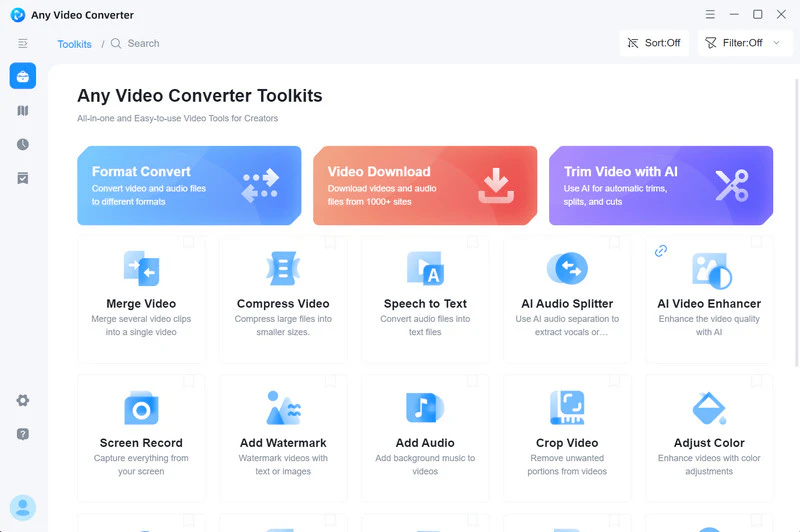
2.1. Any Video Converter
Best for: Users who frequently download videos and also need to convert formats, extract audio, or edit videos in a one-stop process.
The key difference between Any Video Converter and standard video grabber software is that it does far more than simply save videos. Once a video is downloaded, you can proceed to convert, compress, trim, and apply AI-powered editing—handling the entire video workflow within a single application. This video download tool supports fetching YouTube videos, playlists, and other online videos via URL for free.
Hands-on Review:
The process of grabbing videos is straightforward: simply select the download mode and start the task for free. If the downloaded video format isn't compatible with your TV, mobile phone, or other device, you can convert it to MP4, MKV, MOV, or other device-specific formats. Alternatively, if you only want to save the audio, you can extract it as an MP3 or other audio file. This all-in-one workflow is ideal for users who frequently handle media files.
✔️ Extract audio tracks and subtitles into separate files
✔️ Free download options in various quality modes
✔️ More AI-powered media file processing
✔️ All-in-one video and audio editing workflow
|
|
❌ You need to install the desktop software first
❌ Advanced download customization requires an upgrade
|
|
2.2. 4K Video Downloader Plus
Best for: 4K and 8K videos, playlists, or channels, including VR video downloads.
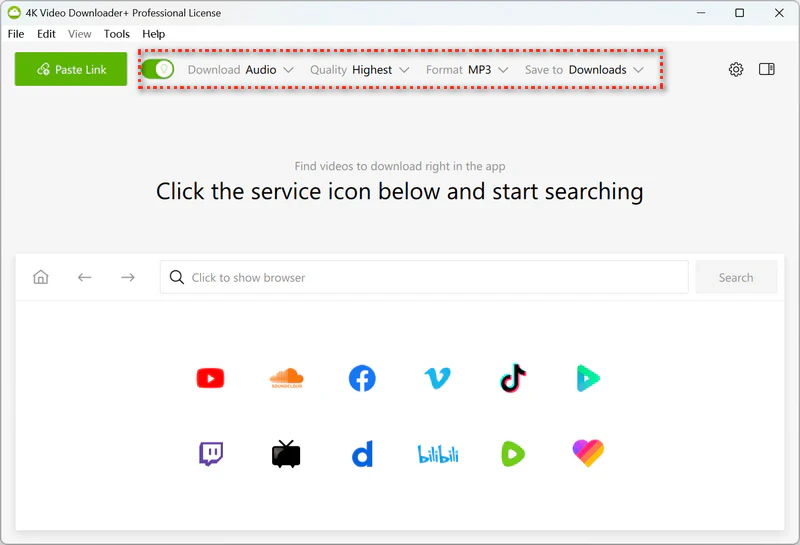
4K Video Downloader Plus supports copying URLs for videos, playlists, or channels; you can then grab them using the "Paste Link" button and select your preferred format and video quality. It also offers a "Smart Mode," allowing you to preset the format and resolution.
Hands-on Review:
The entire process revolves around the steps of "Copy Link → Paste Link → Select Format and Quality → Download," making it easy for new users to get started. The "Subscribe and Download" button can also automatically grab newly added videos, though unlocking this feature requires payment.
✔️ Polished YouTube downloading experience
✔️ Videos, playlists, and channels download
✔️ Clear options for formats and video quality
|
|
❌ The free version allows downloading only 10 videos per day
❌ It lacks post-editing and processing tools
|
|
2.3. CleverGet
Best for: Users who need to download or record full TV series (all episodes) or specific seasons.
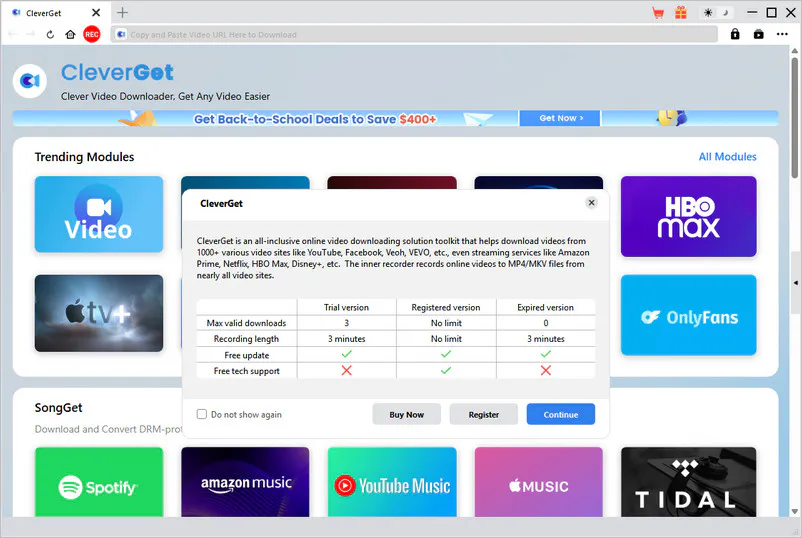
CleverGet offers dedicated download modules for different streaming services (such as YouTube, Amazon, and Netflix). It uses a built-in browser to access and parse videos, including live M3U8 streams.
Hands-on Review:
In addition to downloading videos, it features a REC button that allows you to record and save content while watching a live stream, offering an alternative method for video grabbing. However, the free version limits you to downloading three videos and recording up to three minutes.
✔️ Built-in browser for easy video access and parsing
✔️ Modules for videos, live streams, and specialized downloads
|
|
❌ The free trial allows up to 3 downloads per module
❌ The free version limits video recording to a maximum of 3 minutes
|
|
2.4. JDownloader
Best for: Power users, large numbers of URLs, and complex batch grabbing tasks.
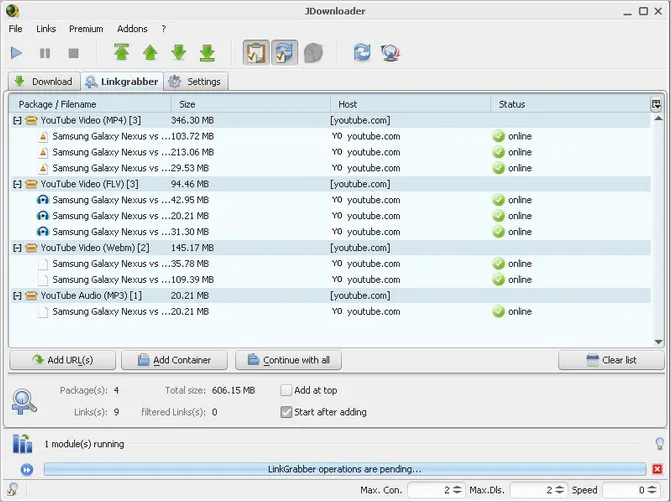
JDownloader is a free link grabber. You can press Ctrl+V, and the program automatically identifies all video content within the links. It also offers download management features such as task pausing, download speed limits, and simultaneous downloads.
Hands-on Review:
When you grab a link, it first enters the LinkGrabber window, where the program analyzes the page for downloadable resources; you then decide which items to add to the final download list. Beginners will need some time to get used to this workflow.
✔️ Free, with a rich set of task management features
✔️ LinkGrabber is ideal for handling large numbers of URLs at once
|
|
❌ Harder to learn than other video grabber software
❌ Limited built-in video editing or conversion tools
|
|
2.5. ClipGrab
Best for: Beginners looking to download videos and perform simple MP3 conversions for free.
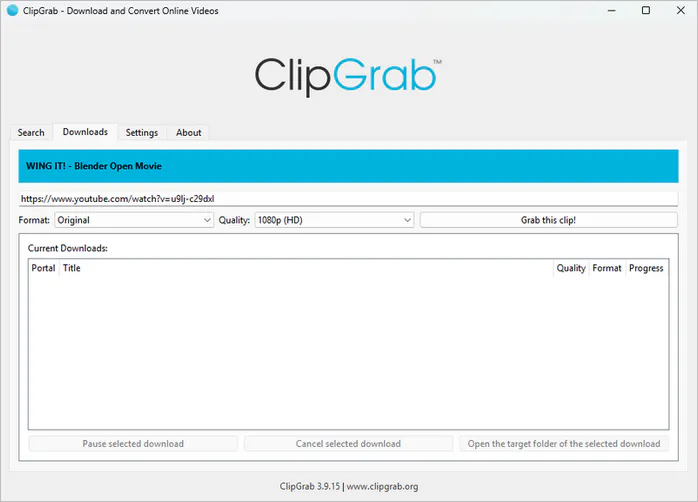
ClipGrab is currently available for Windows, macOS, and Linux; the basic workflow involves pasting the video URL and then selecting the format (MP4, WMV, MP3) and video quality to download a single video.
Hands-on Review:
Its greatest advantage is the simplicity of the download process. After entering the URL, there are no complex task configuration pages. However, precisely because of this, it also lacks more comprehensive batch management and media processing features.
✔️ Free and unlimited downloads
✔️ Available on Windows, macOS, and Linux
✔️ Video downloading and MP3 audio extraction
|
|
❌ Unable to download in batches
❌ Unable to parse all content in the playlist
❌ Changes to supported websites may temporarily affect downloads
|
|
Part 3: Online Video Grabbers for No-Install Downloads
3.1. VideoGrab.net
Best for: Download public, non-YouTube videos occasionally without installing software.
VideoGrab.net is a typical URL-based video grabber. You can start the extraction process simply by pasting a video link into the input box on the webpage—no desktop software installation is required. It supports major social platforms such as Twitter/X, VK, Pinterest, TikTok, and Likee, and is compatible with both desktop and mobile devices.
Hands-on Review:
In actual testing, VideoGrab.net was unable to download videos from YouTube links. Therefore, it is not the right choice if your primary need is to download YouTube videos.
✔️ No installation required
✔️ No account or registration needed
✔️ Simple for occasional social media downloads
|
|
❌ Cannot grab YouTube links
❌ Limited format and quality controls
❌ MP4-focused download options
|
|
3.2. VidPickr
Best for: Downloading videos in batches, plus MP3s, subtitles, and thumbnails from one site.
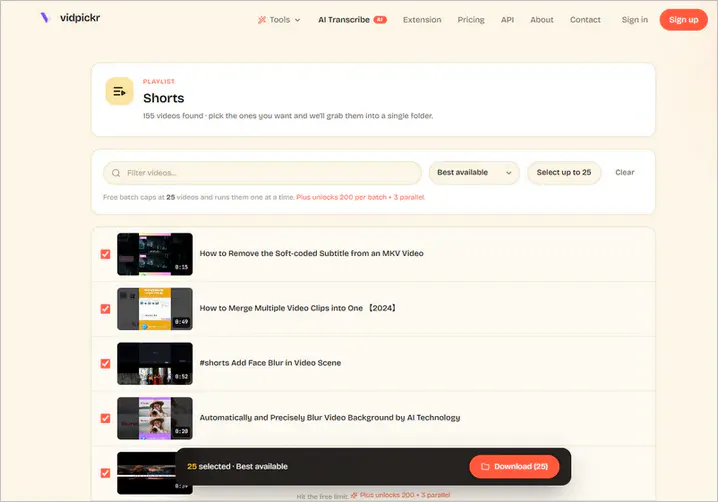
VidPickr brings together a YouTube downloader, YouTube to MP3 converter, subtitle downloader, thumbnail downloader, and various other tools on a single website. You can select the specific online tool that meets your needs, and the downloader supports batch downloading of YouTube videos.
Hands-on Review:
No account registration is required. Compared to VideoGrab.net, it is more like a small toolkit designed for online videos. While it offers download options up to 4K or 8K, the actual resolution available depends on the source website and the media streams provided by the original video.
✔️ A collection of tools for downloading YouTube videos, audio, subtitles, and thumbnails
✔️ Offers more features than standard URL-based online downloaders
|
|
❌ Batch download up to 25 videos only
❌ Online services are more susceptible to website changes
|
|
3.3 GrabnWatch
Best for: Occasionally save non-YouTube social media videos.
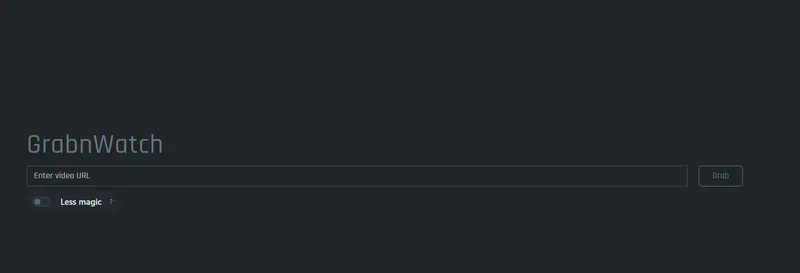
The GrabnWatch website features only a single input box, no advertisements or superfluous text. It supports MP4-only downloads, making it more convenient than feature-heavy desktop video grabbers for those who only occasionally need to download a single MP4 video.
Hands-on Review:
In our actual testing, we entered video links from YouTube, Facebook, Twitter/X, and TikTok into the GrabnWatch website. Only Twitter/X and TikTok were successfully parsed. GrabnWatch does not publish an official list of supported websites.
✔️ Simple browser-based workflow
✔️ Convenient for occasional downloads
|
|
❌ Could not grab YouTube links in our test
❌ Limited format and quality controls
❌ Not suitable for bulk or long-term download tasks
|
|
Part 4: Video Grabber Extensions for Streaming Videos
⚠️ Note: The two Chrome extensions reviewed below do not support YouTube downloads.
 You May Also Like: YouTube Downloader Extensions >>
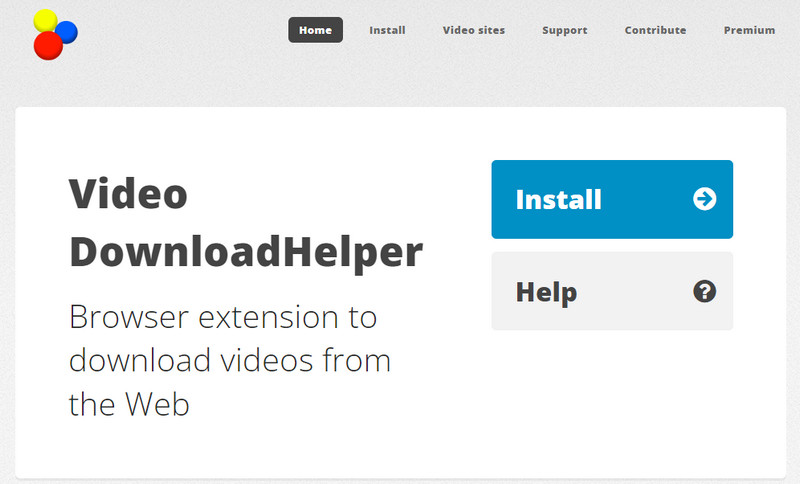
4.1. Video DownloadHelper
Best for: Detecting and downloading streaming media from non-YouTube webpages.
Video DownloadHelper handles various streaming media formats—including DASH, HLS, and MPD—and supports live streams, high-quality video, and formats such as MP4 and MP3.
Hands-on Review:
Unlike video grabbers that require you to copy and paste URLs, its greatest convenience is that you can browse and download videos on the same webpage. Once the extension detects media content, you can simply select the downloadable resource from the extension's menu.
✔️ Automatically detects media resources while browsing
✔️ Eliminates the need for frequent URL copying and pasting
|
|
❌ YouTube downloads are not supported
❌ High-quality downloads require payment
❌ The extension requires web access permissions
|
|
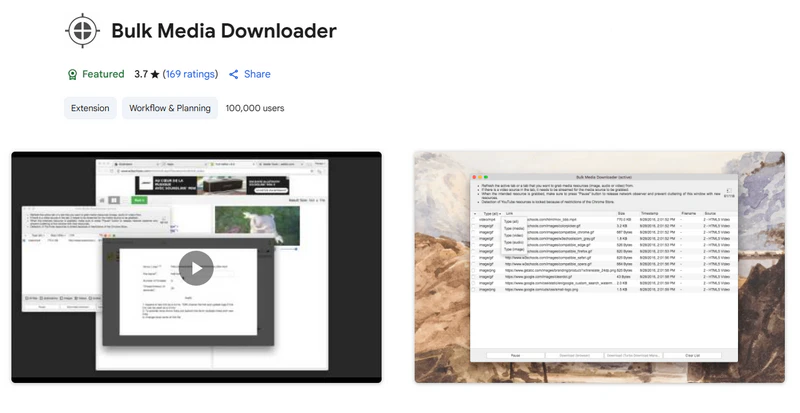
4.2 Bulk Media Downloader
Best for: Grab a large number of video, audio, or image resources from a webpage.
Bulk Media Downloader primarily collects media files by monitoring a webpage's network activity. During the grabbing process, a window displays the detected video, audio, document, and image links, allowing you to select the desired items for batch downloading.
Hands-on Review:
It is better suited for web pages with a large number of resources—for instance, pages containing multiple audio, image, or media files—as it is more efficient than saving them one by one. However, during the grabbing process, only the links are displayed; the actual visual content is not shown.
✔️ Batch extract multiple media resources
✔️ Handle large-scale downloads
|
|
❌ No YouTube download
❌ Detected items are mainly shown as URLs, making them harder to identify
|
|
Part 5: How to Grab Online Videos for Free in 3 Simple Steps
Saving online videos using the desktop video grabber requires only three simple steps.
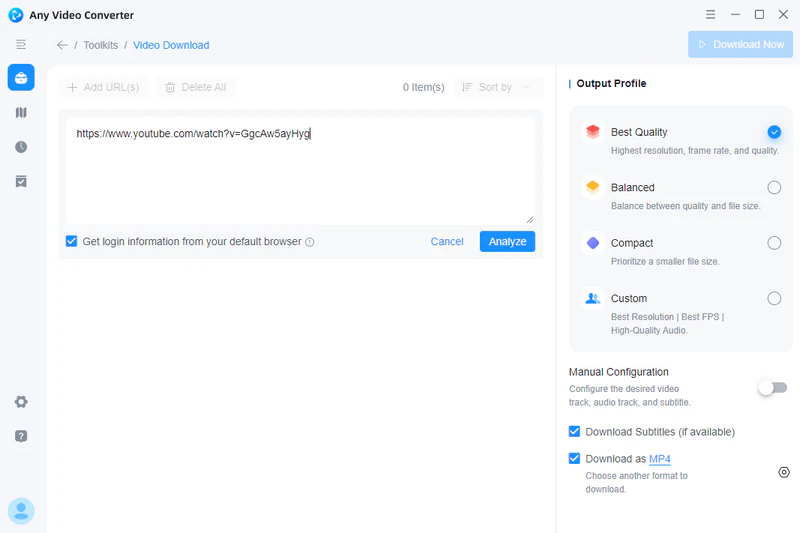
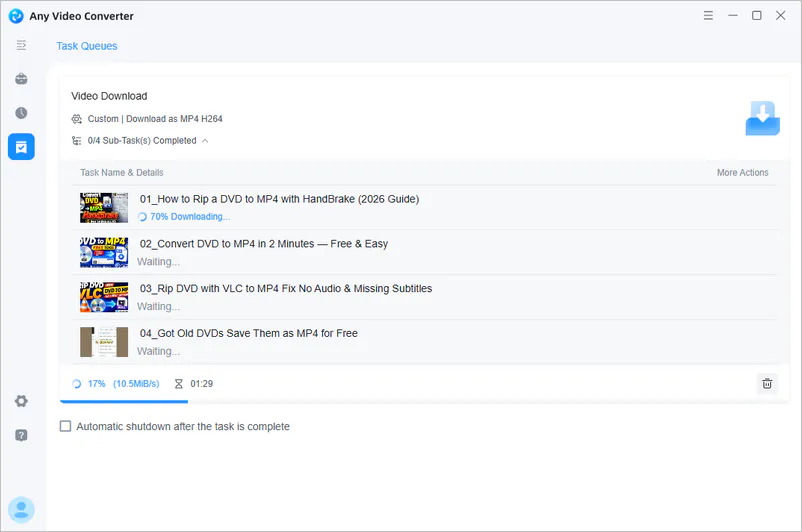
Step 1 Install Any Video Converter and open the Video Download tool. Copy one or multiple video/playlist/channel links you want to download, click Add URL(s), paste the URL into the search box, and then start parsing.
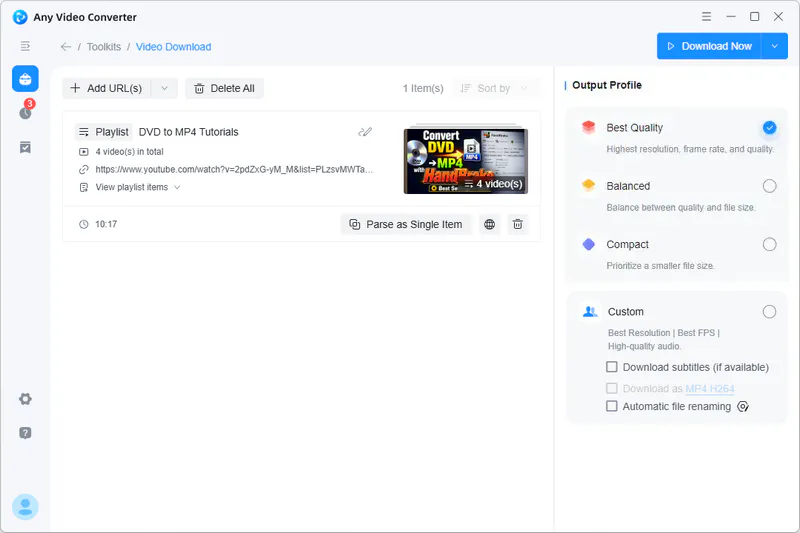
Step 2 After successful parsing, select the download mode in the Output Profile on the right: Best Quality, Balanced, or Compact. These are all free download modes.
Step 3 Click "Download Now" to start grabbing videos for free. Once the download is complete, you can play the video directly, or continue to convert formats, compress files, extract audio, or perform other video processing tasks as needed.
Part 6: FAQs about Video Grabber
What does a video grabber do?
A video grabber is a tool used to scan and save web videos or media resources.
This type of tool varies; it might parse media files via video URLs or monitor HLS, DASH, or other media requests within a webpage through a browser. Some desktop video grabber software also includes format conversion, audio extraction, batch downloading, and task management features.
What can I do if a URL-based video grabber does not work?
First, confirm that the video is publicly accessible. Then, check if the URL is complete and reload the video page.
If the video still cannot be parsed, the problem may not be with the URL. In this case, try updating your software or using a different video grabber alternative, such as switching from an online URL grabber to a desktop downloader (Any Video Converter) or an extension.
Which video grabber app is the safest?
Rather than focusing on which video grabber is safest, the most important thing is to download the software or install the extension from the official website or browser store. Avoid third-party modified versions, cracked versions, or installation packages from any other unknown sources.
How to choose the right video grabber?
If you only need to save an occasional public video, online tools like VideoGrab.net and VidPickr are the most cost-effective.
For long-term downloads of HD, 4K, 8K videos, handling multiple URLs, or extracting MP3, desktop software like Any Video Converter and 4K Video Downloader Plus are more suitable.
If you want to grab videos while they are playing on a webpage, you can consider browser extensions like Video DownloadHelper.
For a large number of links and complex download queues, a download manager like JDownloader will be more efficient.
What are the alternatives to a video grabber?
If a URL-based video grabber does not work, screen recording can be another option for saving permitted, non-DRM content.
For advanced users familiar with the command line, the yt-dlp open-source download tool is also a good alternative. However, command-line tools have a higher learning curve and may not be suitable for ordinary users who prefer to download through an intuitive interface.
Final Thoughts
There isn't one video grabber that suits everyone.
VideoGrab.net, VidPickr, and GrabnWatch’s biggest advantage is that they don't require installation. Video DownloadHelper and Bulk Media Downloader offer a different way of working than URL-based downloaders.
4K Video Downloader Plus offers a polished video downloading experience, CleverGet focuses more on streaming video, JDownloader is suitable for advanced batch download management, and ClipGrab focuses on simplicity and free video downloads.
Beyond downloading, if you also need to convert video formats, extract audio, compress, or continue editing the video, Any Video Converter is more suitable as part of a complete video workflow, rather than just a one-off video downloader.

Besty Smith | Content Writer
Besty Smith is a talented and insightful content creator with a keen interest and
passion for software programs. She focuses on in-depth research and hands-on experience with various
types of software, providing readers with in-depth and inspiring content through precise writing. With
her keen insight into the software industry, Besty is committed to helping readers keep abreast of the
latest industry trends so that they can stay competitive in the digital age.